Windows 7 is pretty, fun to use with, and fast but it may be not fast enough for some people who looking for blazing fast speed. There are also low-end computer which seems slower when running windows 7. My windows 7 tweaking guides will be focus on easy tweaking only and keep the original fancy looks of windows 7 .So let us start tweaking windows 7 from the very beginning process of startup until the end which is shut down.
1. Start up:Start up speed is largely affected by how many start up program you have, such as windows messenger, anti-virus, downloading software, torrent and so on. It is best to keep your number of start up programs as little as possible.
If possible just go check in the options menu of software which i have mention just now to ensure that the "automatically run xxxx program when i log on to windows" is not ticked. After you have done that, proceed to next step:
- Click Start
- Type msconfig, press enter. Go to Startup tab.
- Uncheck the programs you don't wan them to run upon startup then OK. Just like what i show below.
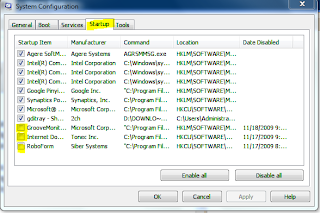
(Reminder: don't bother to tweak option in boot tab. Some sites tell you to select the working core number on startup which is unnecessary as windows default setting is to work on maximum core number)
2. While running Windows 7:"Smoothness" of windows is directly related to how many programs are running in the background. As we have turn off all of the unnecessary applications upon startup means that our windows should running the least programs or services now.
Don't bother to install any extra program which claims to turn off your useless services and applications, by installing this extra software itself already makes it an extra burden to windows.
Thus, in this part i will just focus on the routine maintenance of windows 7.
Maintenance of windows roughly just 2 easy things, keep windows
tidy and
clean. You do hard disk defragmentation to keep your windows tidy and delete junk files and useless registry and shortcut to make windows clean.
Defragmentation:
- Click Start
- Type defrag, press enter.
- Proceed to defragment all your drives. If defragment for all drives takes too long, just do it for your system drive which usually is C:\
- Do defragment for your hard disk drive once in a month at least as a routine maintenance. You can use the schedule option in defragmentation menu.
Clean up :
- I suggest to use ccleaner.Download it here.
- Launch ccleaner. No need to use the cleaner option if you don't know what you dealing with
- Directly go to the registry option, scan for issues then fix it. You are done. :)
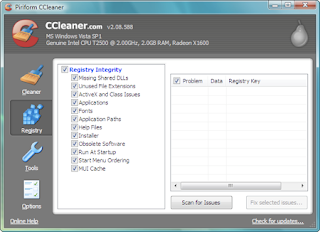
- Then go to the tools option, there are 2 sub-options in it. Uninstall and Startup. You can use "uninstall" to remove unwanted program and "startup" to turn off any unneccesary startup programs(just like what i have mention in the first part of my post.)
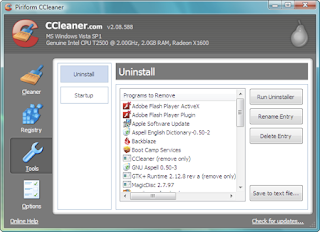
- Feel free to explore other feature of ccleaner.
3. Shut down Windows 7:You can speedup windows 7 shutdown by doing a simple registry hack.
- Click Start
- Type regedit, press enter.
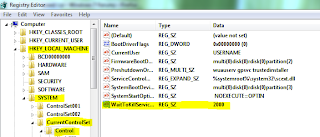
- In regedit, go to HKEY_LOCAL_MACHINE\SYSTEM\CurrentControlSet\Control
- In the right pane, right click on WaitToKillServiceTimeout and click on Modify.
- Type in a number between 2000-20000 (2-20 seconds) and click on OK.(The default time is 12000)
Lastly, you can turn off all the fancy effect of windows 7 if you wanted to. This will surely boost the speed of windows but it is not considered as an good solution for me.
- Click Start
- Type “SystemPropertiesPerformance” into the search field, press enter
- Select “Adjust for best Performance”, or just turn off transparency and aero effect.


_576x360.jpg "Random Inspirational Wallpaper #2")


.jpg)

.jpg)


_480x360.jpg)